This guide is the complete reference for designing a survey in FlexiSurvey, written for field and monitoring-and-evaluation (M&E) teams. It covers every question type, conditional logic, offline data collection, settings, and how to publish and share — so you can build anything from a quick water-point pulse to a multi-section household monitoring instrument.
If you just want the fastest path from a blank survey to a published one, follow the Quickstart below; the sections after it go deeper on each capability.
Quickstart: Build a survey
Follow these steps in the product:
This guide walks you through creating a survey in FlexiSurvey — from choosing a starting point to publishing it for collection. Each step shows the real product screen you'll see, so you can follow along in your own account.
1. Start a new survey
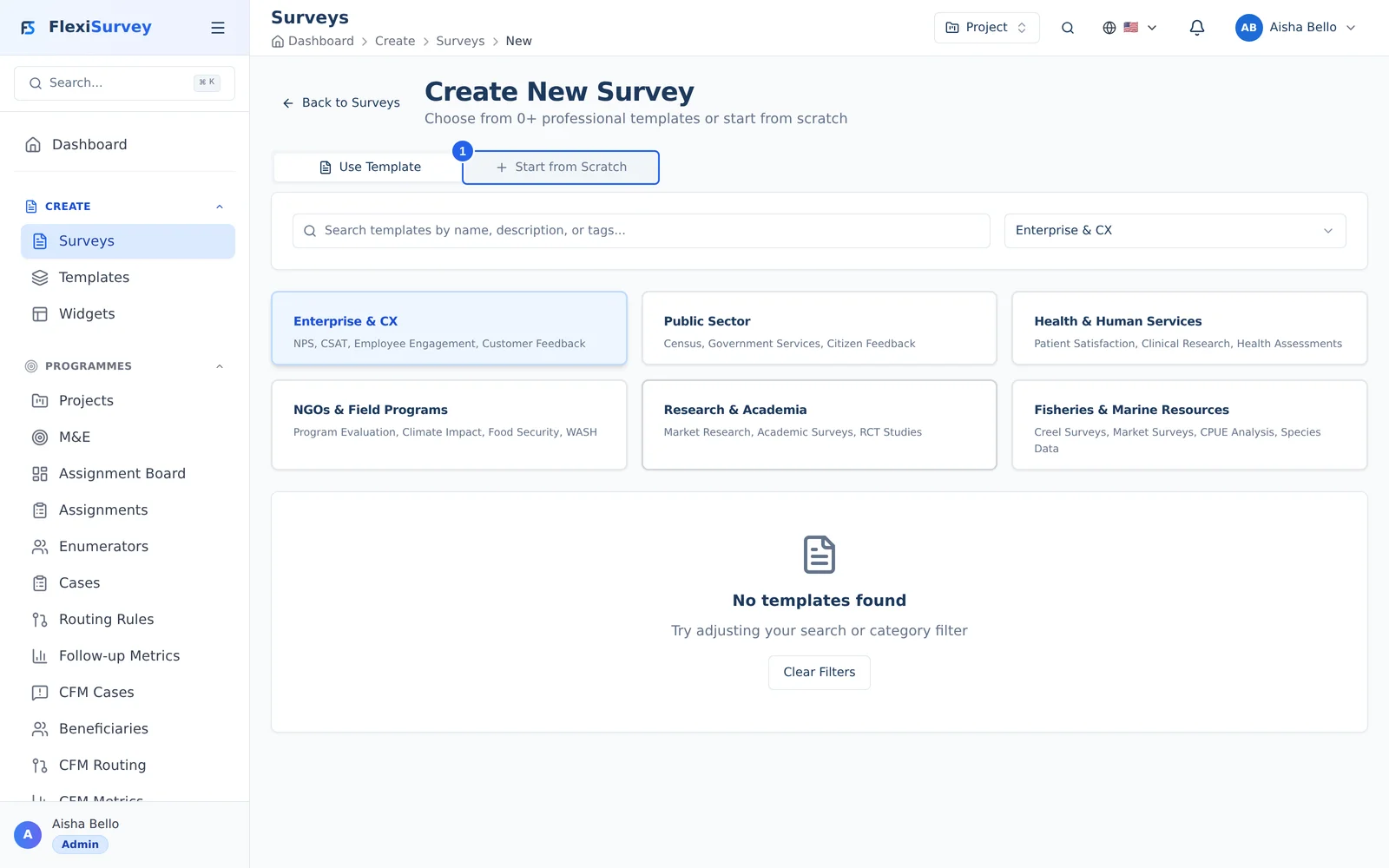
From the dashboard, open Surveys → New survey. You can begin from one of the pre-built templates or start from a blank survey. This guide starts from scratch.
2. Choose "Start from scratch"
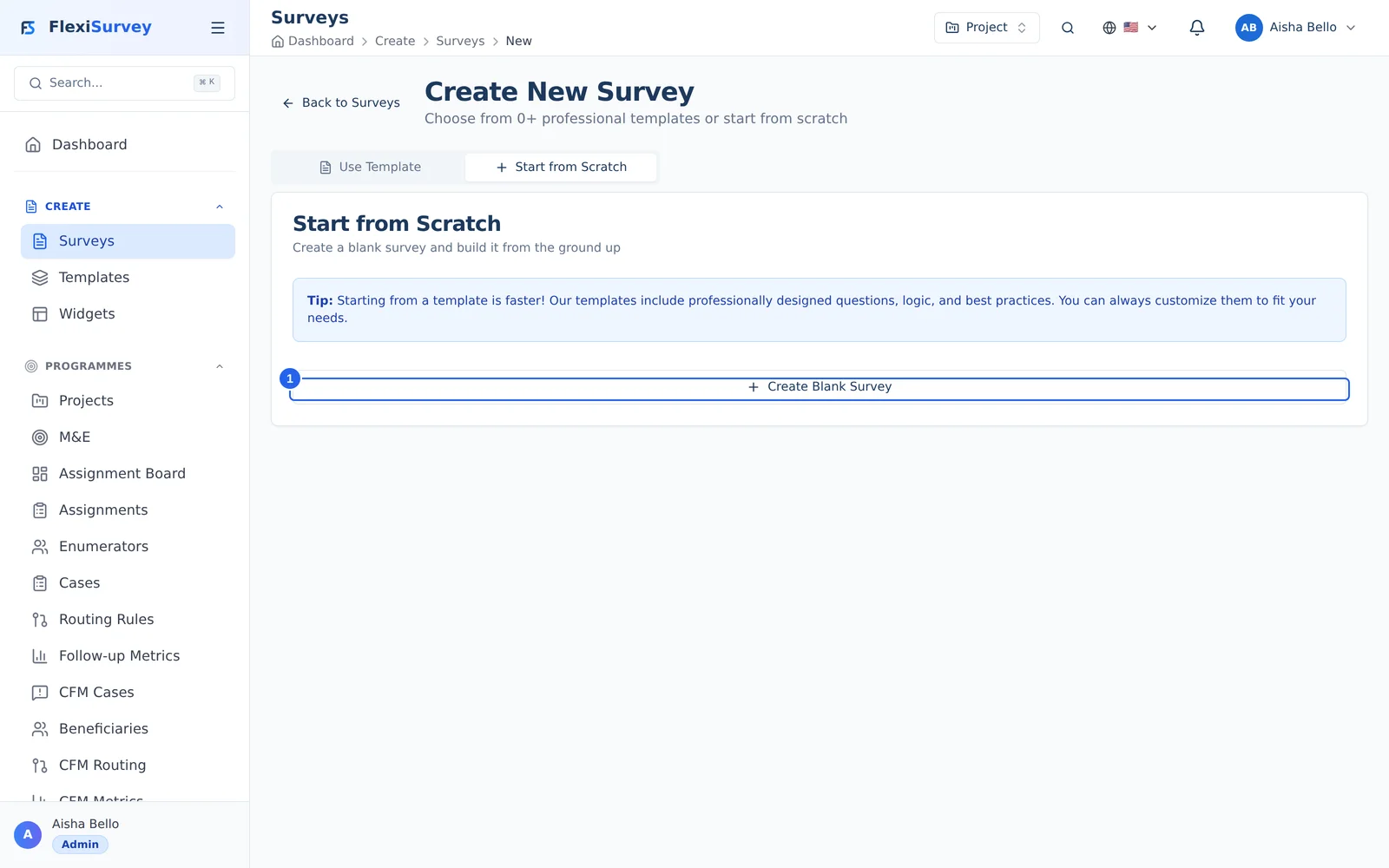
Switch to the Start from scratch tab and select Create blank survey. This opens the survey builder with an empty survey you'll shape step by step.
3. Name and describe your survey
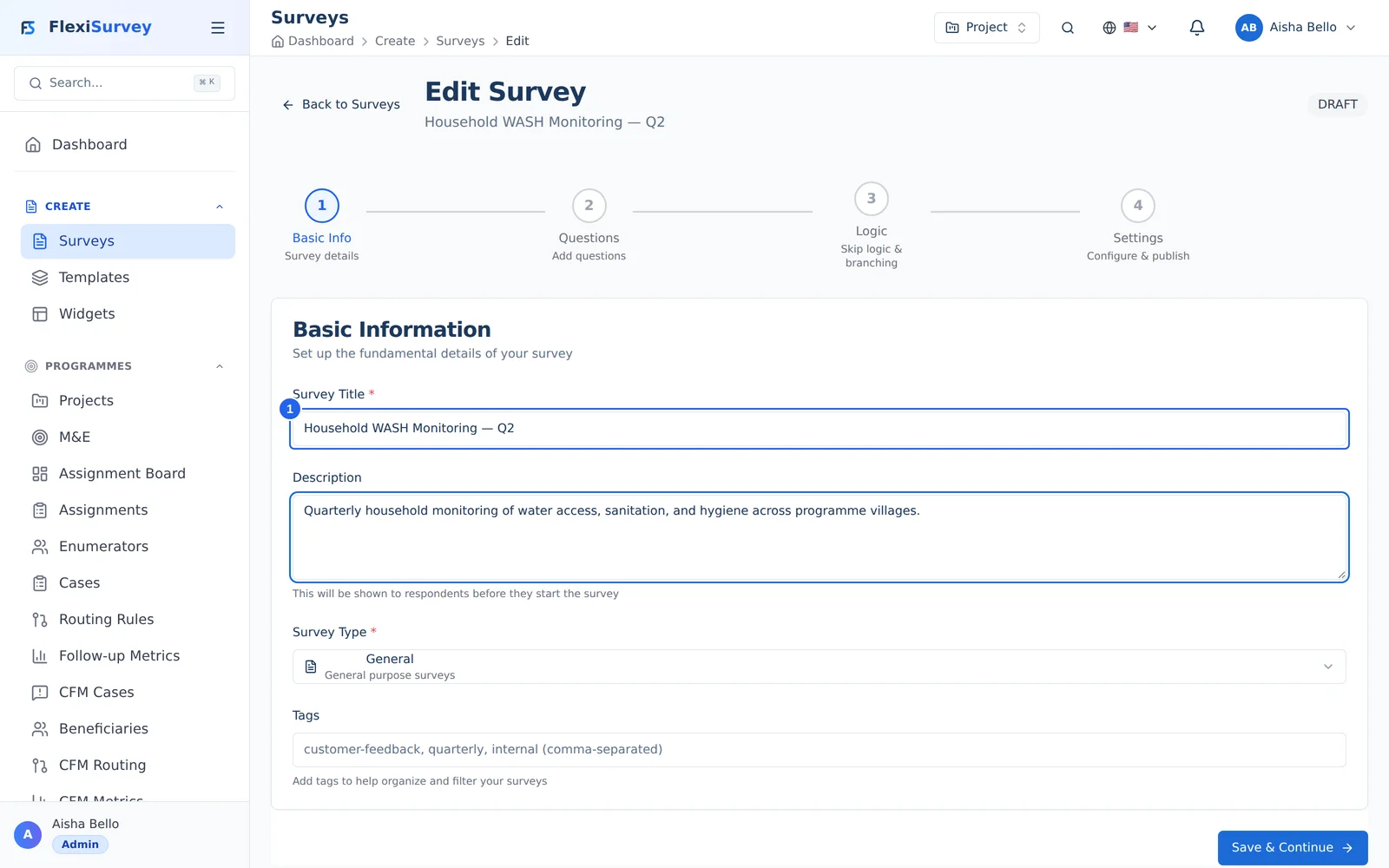
In the builder's first step, give your survey a clear title and an optional description, and pick a survey type. A descriptive title helps your team find the survey later and appears to respondents at the top of the form.
4. Add your questions
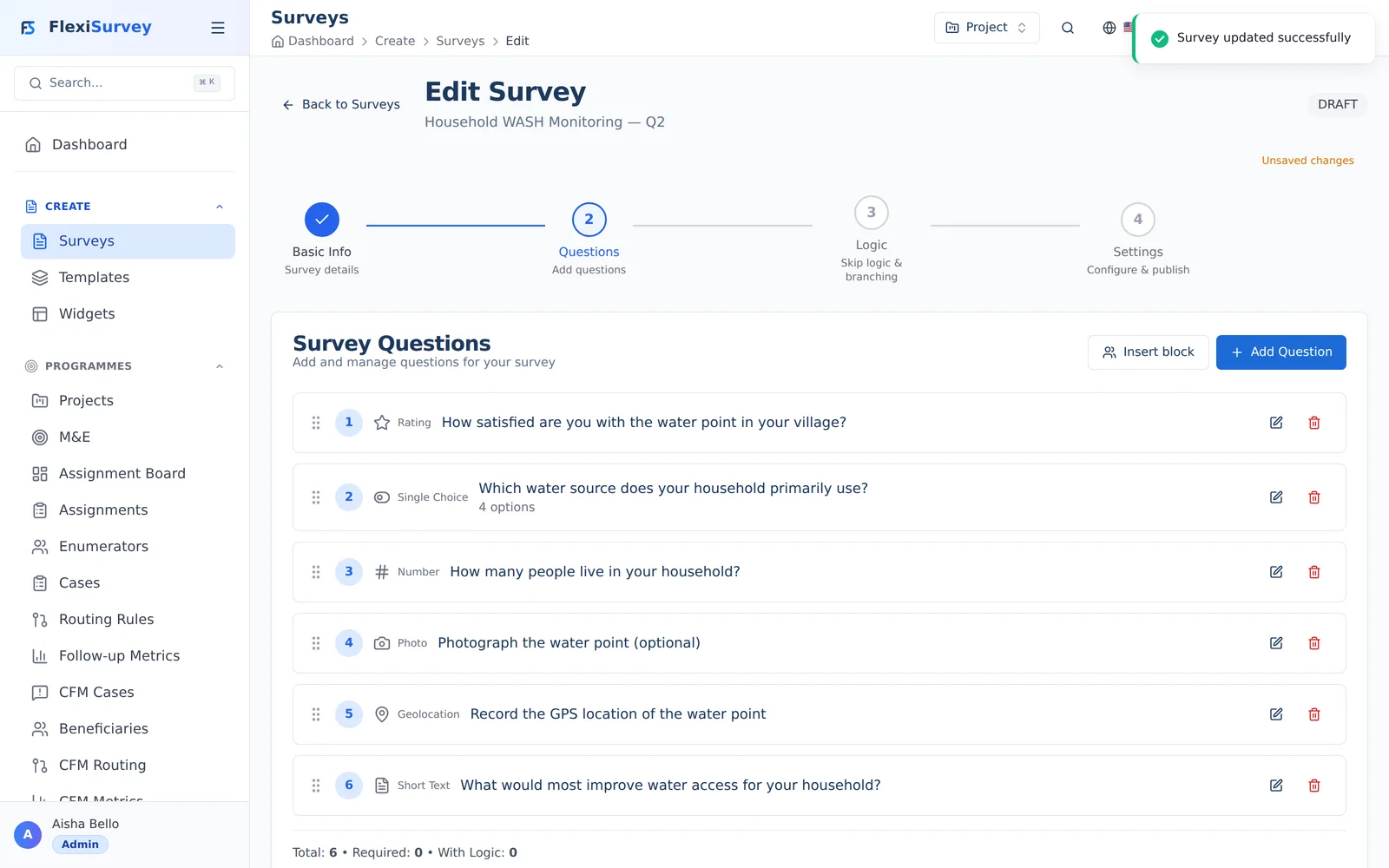
Move on to the Questions step to build out your survey. Add questions of any type — ratings, single- or multiple-choice, free text, and field types like photo, location, and signature — and reorder them by dragging. The builder saves your progress automatically as you go.
5. Publish and share
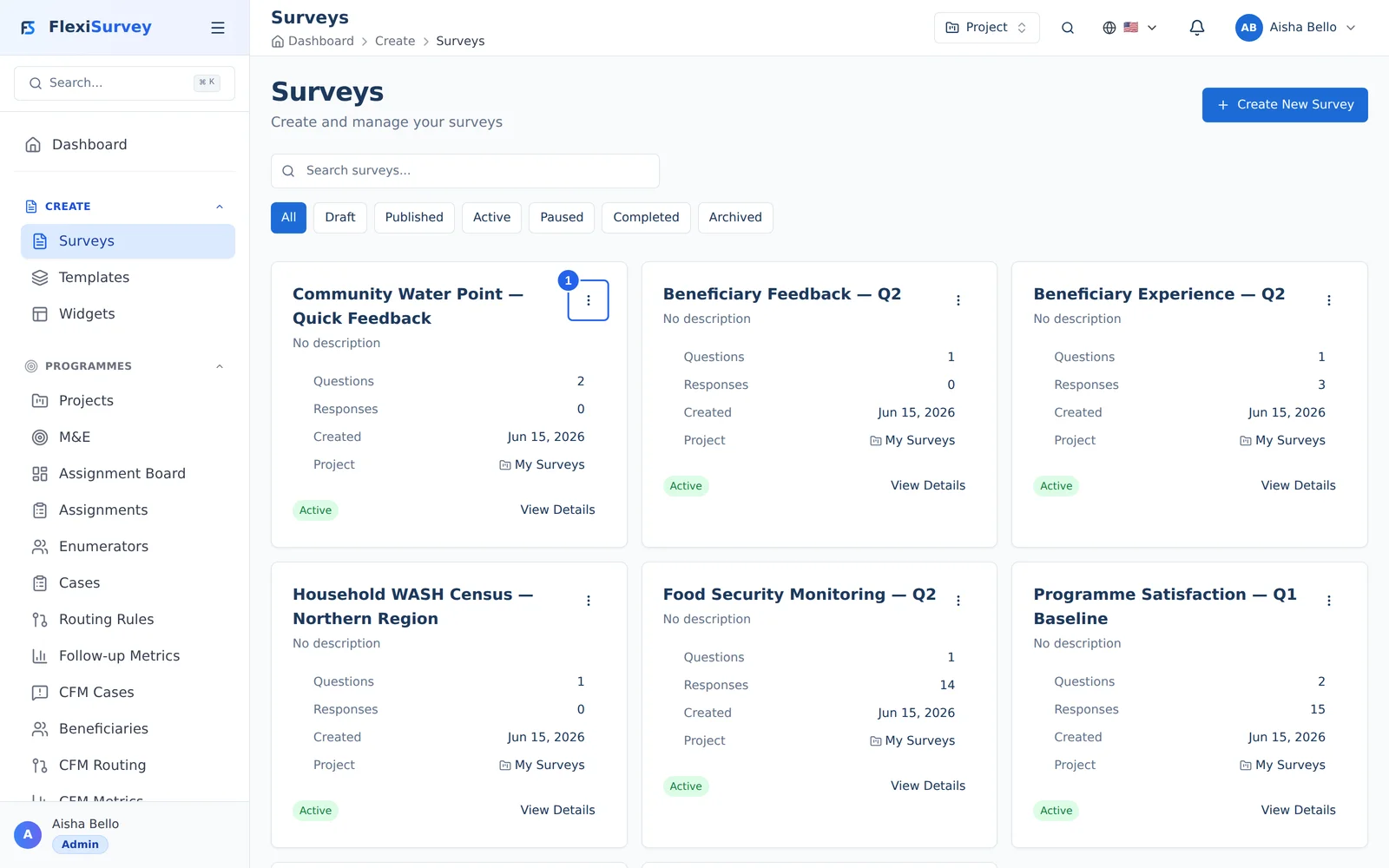
Your new survey now appears in the Surveys list as a draft. When it's ready, open its actions menu to publish and activate it so it can collect responses, then share it via a public link, QR code, email campaign, or the embeddable widget.
Where surveys live: projects
Every survey belongs to a project — the programme or effort it serves (for example, WASH Programme — Northern Region). Projects keep a programme's surveys, assignments, responses, and indicators together, and control who can see them. If you don't pick one, your survey lands in your workspace's default project, so the simple single-survey path stays flat. On the Organisation plan and above you can create multiple projects and move a survey between them from its actions menu.
Question types reference
The survey builder offers a wide set of question types. For field and M&E work, the field types at the end of this table matter most — they capture evidence and location directly from a phone, online or offline.
Text and number
| Type | What the respondent does | Use it for |
|---|---|---|
| Short text | Types a single line | Names, reference codes, short answers |
| Long text | Types a paragraph | Comments, narrative feedback |
| Number | Enters a number (min/max, decimals) | Household size, quantities, amounts |
| Enters an address (format-validated) | Contact collection | |
| Phone | Enters a phone number | Contact collection, follow-up |
| URL | Enters a link (format-validated) | References |
Choice
| Type | What the respondent does | Use it for |
|---|---|---|
| Single choice | Picks one option | Categories, yes/no-style questions |
| Multiple choice | Picks several ("select all that apply") | Symptoms, services used |
| Dropdown | Picks one from a compact list | Long lists (districts, countries) |
| Yes / No | Toggles a binary answer | Eligibility, consent screens |
Rating and structured
| Type | What the respondent does | Use it for |
|---|---|---|
| Rating | Taps a star rating | Satisfaction, quality |
| Scale | Picks a 0–10 point | Net Promoter Score, likelihood |
| Ranking | Drags items into order | Priorities, preferences |
| Matrix | Answers a grid of rows × columns | Rating many items on one scale |
| Date / Time / Date & time | Picks from a calendar or clock | Visit dates, appointment times |
Field types (camera, GPS, signature)
| Type | What the respondent does | Use it for |
|---|---|---|
| Photo | Captures or attaches a photo | Evidence — a water point, a receipt, a site condition |
| Geolocation | Records GPS coordinates | Site and household location, delivery confirmation |
| Signature | Signs on screen | Consent, acknowledgement, inspection sign-off |
| Barcode | Scans a QR/barcode | Asset tags, beneficiary cards, stock items |
| File upload | Attaches a document | Supporting evidence, forms |
A typical household monitoring survey mixes several of these — a rating, a single choice, a number, plus photo and geolocation evidence:
All question types work in the native iOS and Android apps, including offline. Photo, geolocation, signature, and barcode use the device's camera and GPS directly; captures sync when the device is back online.
Conditional logic and branching
Conditional logic makes a survey adapt to each respondent — showing, hiding, or skipping questions based on earlier answers. It keeps instruments short in the field and avoids asking irrelevant questions.
In the builder's Logic step, add a rule with two parts:
- Condition (the "if") — choose a source question, an operator, and a comparison value.
- Action (the "then") — show a question, hide a question, skip to a question, or end the survey early.
For example: show the "what would improve access?" follow-up only when the water-point satisfaction rating is 2 or below.
Operators
| Operator | Meaning |
|---|---|
| equals / does not equal | Exact match on the answer |
| contains / does not contain | Substring present or absent |
| starts with / ends with | Text prefix or suffix |
| greater than / less than | Numeric comparison |
| greater than or equal / less than or equal | Numeric comparison, inclusive |
| is in / is not in | Answer is (not) one of a set |
| between | Numeric range |
| is empty / is not empty | Whether an answer was given |
Conditions can be combined with AND, OR, NOT, and XOR — for example, show Q5 if (rating ≤ 2 AND source = "surface water") OR comment contains "broken".
Offline-safe: the mobile app evaluates all logic on-device, so branching and the progress bar work correctly even with no connection.
Piping and formulas
Piping inserts an earlier answer into a later question's text — for example, "Thank you, {respondent's name}! How satisfied are you with the new water point?" It works with text, choice, number, and date answers.
Formulas compute a value from other answers — a total score across several ratings, a weighted index, or a derived figure such as litres-per-person from a quantity and a household size. These computed values can also feed M&E indicators (see the Monitor indicators guide).
Field and offline data collection
For enumerators working in low-connectivity areas:
- Install the mobile app (iOS or Android) and sign in once while online to sync assignments.
- Collect offline — surveys, conditional logic, and validation all run on-device; nothing is lost without signal.
- Capture evidence in place — photo, geolocation, signature, and barcode questions use device hardware directly.
- Sync later — completed responses (and their media) upload automatically when the device reconnects.
Assigning surveys to specific enumerators with collection targets is covered in the Run field operations guide.
Survey settings
In the builder's Settings step:
- Responses — allow anonymous responses, cap the total number, limit to one response per person, and get notified of new responses.
- Schedule — set a start date (the survey opens) and an end date (it auto-closes), in your chosen timezone.
- Appearance — apply a theme, colours, and your organisation's logo. FlexiSurvey branding is removed on paid plans.
Preview, publish, and share
Always preview before publishing — preview simulates the respondent experience (rendering, logic, required-field validation, piping) without creating real responses, so it's safe to test and to share with colleagues for review.
When you're ready, open the survey's actions menu to publish and activate it. A published, active survey can collect responses. Then share it any way that fits your channel:
- a public link (and QR code) for anonymous, no-login responses;
- an email campaign with per-recipient tracking;
- the embeddable widget for your own website;
- an enumerator assignment for app-based field collection.
Distribution is covered in depth in the Distribute your survey guide.
Who can do what
Survey work is governed by roles and permissions:
- Program Managers and users with the survey-create permission can build and publish surveys.
- Survey Editors can change a survey's questions and logic.
- Survey Translators manage translated versions.
- Analysts and Viewers can see results but not edit the instrument.
A survey can also be shared with specific collaborators (Owner / Editor / Analyst / Viewer / Translator) for per-survey access.
Troubleshooting
- "Save & Continue" is greyed out — the builder enables it once you've made a change on the step. Edit a field (e.g. the description) to continue.
- Can't edit questions — a survey can't be edited once it's published. Duplicate it to make changes, or unpublish if your plan allows.
- A field question type is locked — some capabilities are plan-gated; the builder shows which plan unlocks them.
- Logic isn't firing — confirm the rule is enabled, the source question comes before the target, and the comparison value matches the option's stored value.