This guide covers every way to distribute a published survey, from a quick public link to a tracked email campaign. Pick the channel that fits your audience — and combine them when you need to.
Most distribution channels are available on every plan; a few (custom from-address, the respondent portal) are plan-gated and noted below. A survey must be published and active before it can collect responses — see the Building a survey guide for that step.
Quickstart: Distribute your survey
Follow these steps in the product:
A survey only helps once it reaches people. This guide covers the three ways to distribute a FlexiSurvey survey: an email campaign, an embeddable website widget, and a direct public link or QR code.
1. Email campaigns
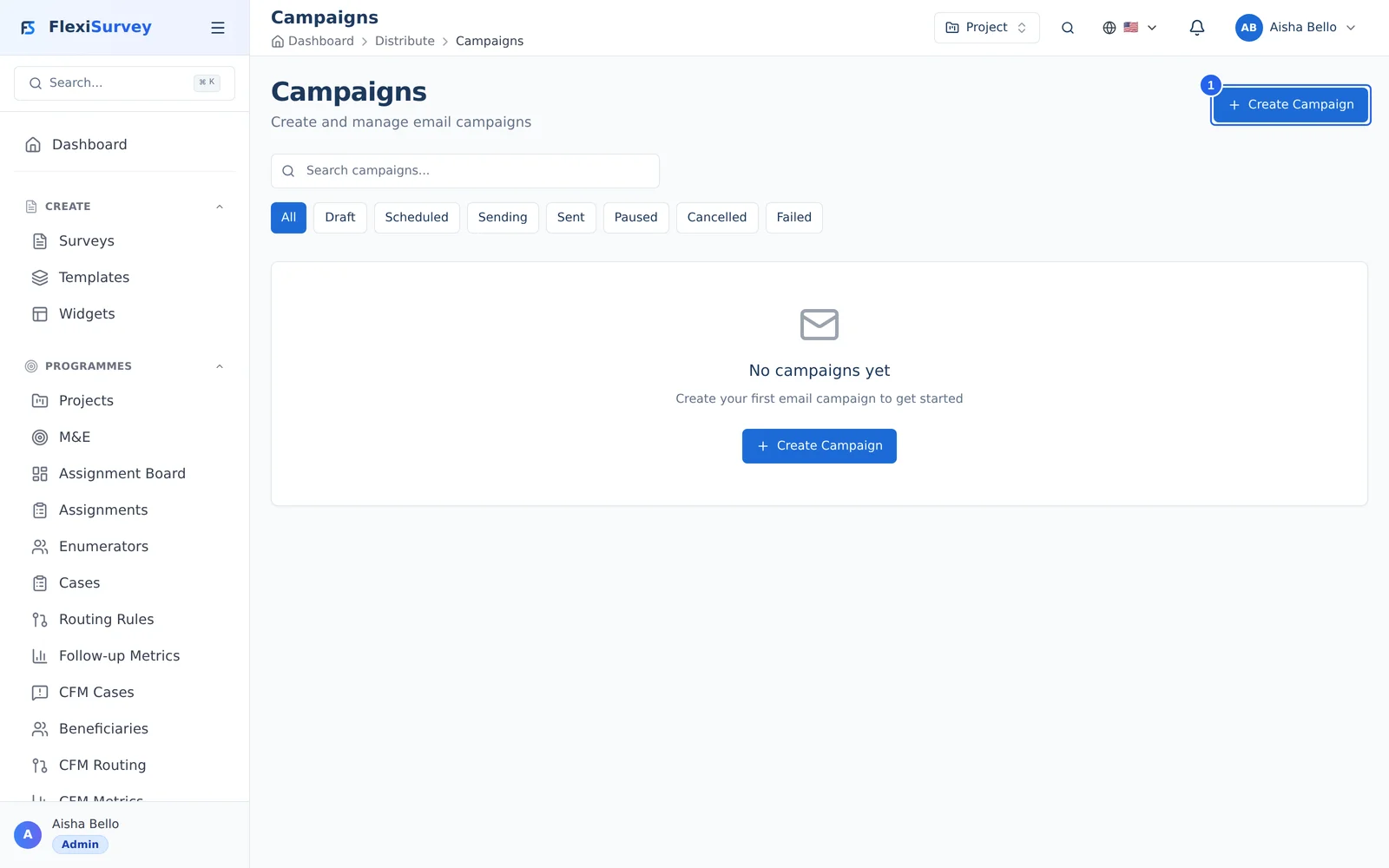
From the Campaigns area you can send a survey to a list of recipients by email, with delivery and open tracking. Start a new campaign to reach your contacts directly in their inbox.
2. Build a campaign
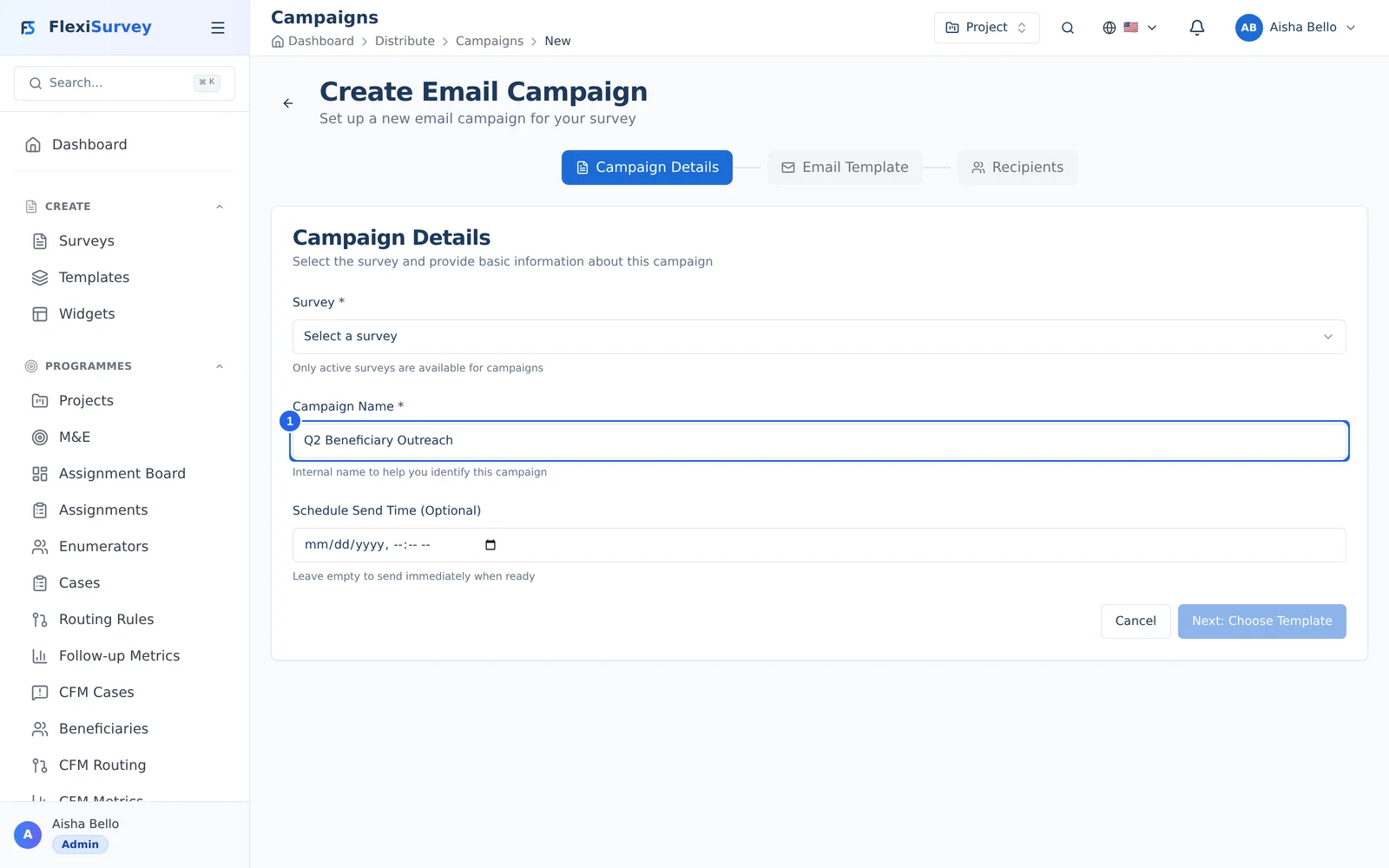
Pick the survey, name the campaign, and write the invitation email. Upload your recipients as a CSV, review, and send — each recipient gets a unique, trackable link to your survey.
3. Embed on your website
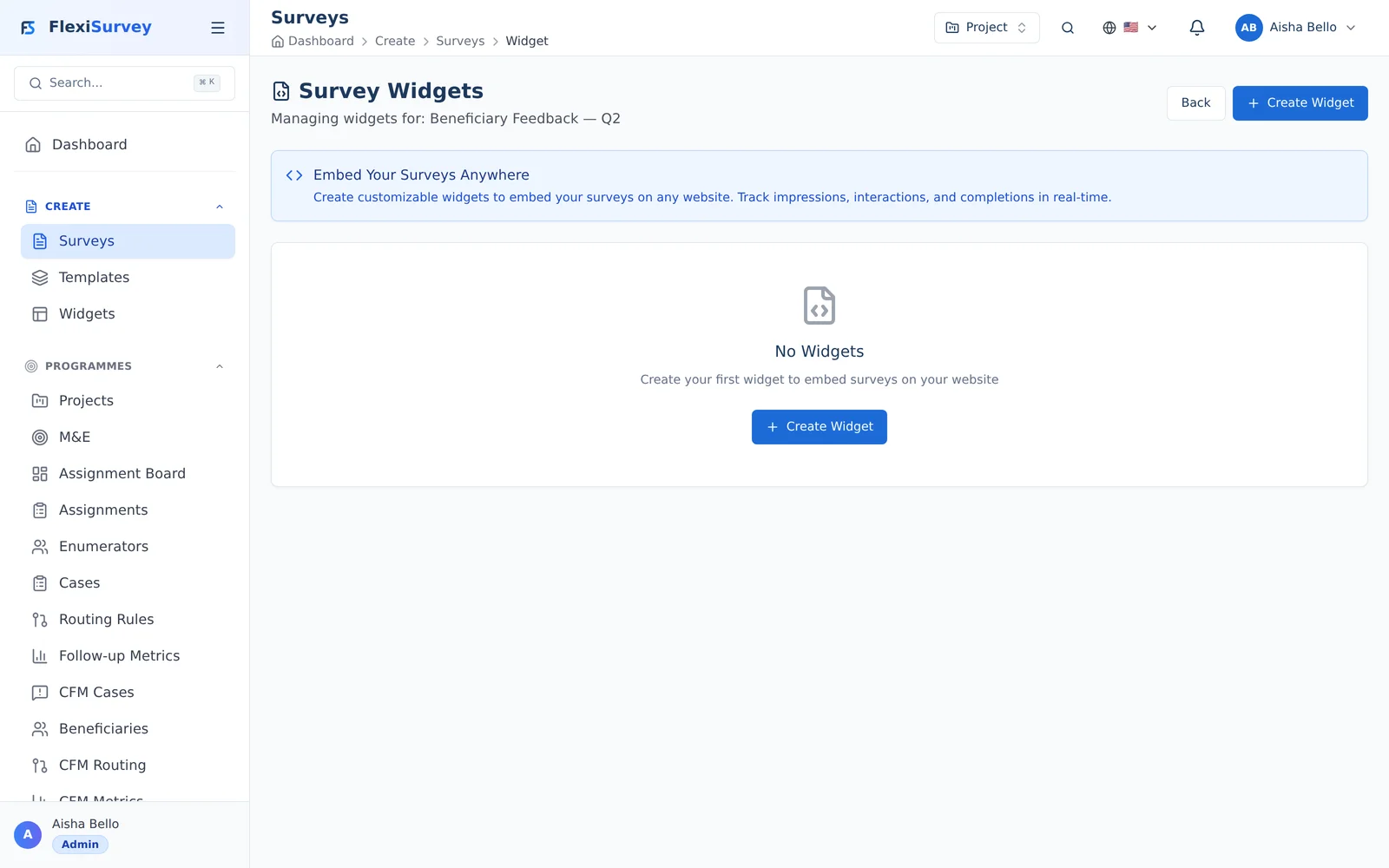
Prefer to collect on your own site? The embeddable widget gives you a copy-paste snippet (script tag, iframe, or JavaScript) that drops the survey straight into any web page — no engineering required.
4. Share a public link or QR code
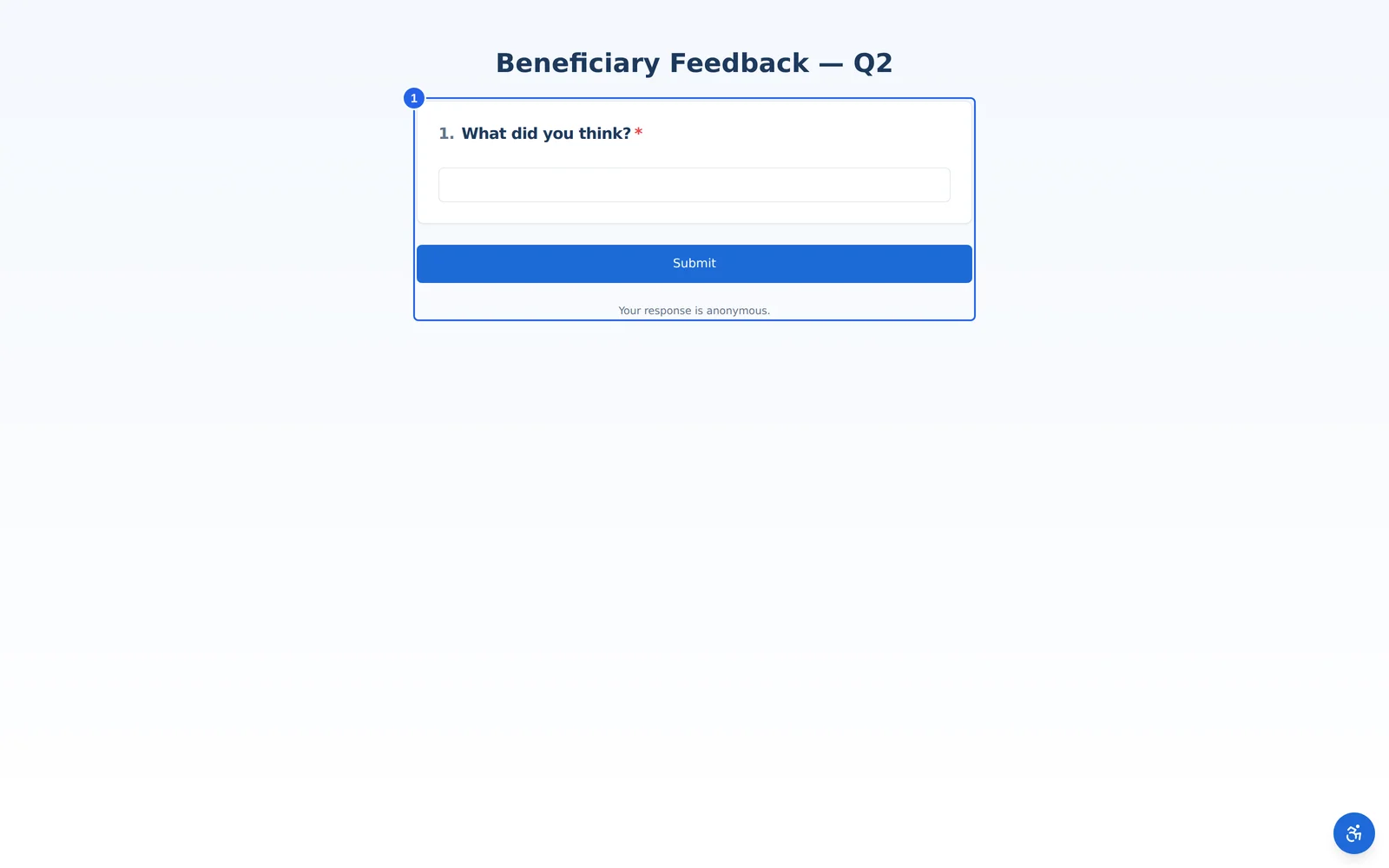
Every survey also has a shareable public link that works on any device with no sign-in — ideal for field collection. Share it directly, post it, or turn it into a QR code respondents can scan in person.
Choosing a channel
| Channel | Audience | Login required? |
|---|---|---|
| Public link & QR code | Anyone — anonymous, walk-up | No |
| Email campaign | A known contact list | No (per-recipient tokens) |
| Embeddable widget | Visitors to your own website | No |
| Enumerator assignment | Your field staff | Yes (mobile app) |
| Respondent portal | Enrolled respondents / panels | Yes |
Field assignments are covered in the Manage enumerators guide; this guide covers the public and contact-based channels.
Public links and QR codes
The simplest channel: every published survey has a public link and a matching QR code. Share the link in a message or printed material, or print the QR code on a poster or card for walk-up collection. Responses through a public link are anonymous unless your survey collects identifying details.
Email campaigns
For a known contact list, run an email campaign with per-recipient tracking.
Building a campaign:
- Import or select your recipients.
- Compose the invitation; FlexiSurvey gives each recipient a unique link so you can tie responses back (or keep them anonymous by choice).
- Send or schedule the campaign.
- Track delivery, opens, clicks, and completions as results come in — bounces and unsubscribes are handled automatically from real mailbox events.
On Organisation and above you can send from your own verified domain (
customEmailFrom) so invitations come from your organisation's address rather than the default sender.
The embeddable widget
To collect responses on your own website, embed the widget — a small JavaScript snippet that renders the survey inline on your page.
- Copy the embed snippet from the survey's distribution options and paste it into your site.
- The widget is responsive, supports your branding and styling, and works cross-origin on any domain.
- Responses flow straight into the same results as every other channel.
The respondent portal
For respondents who return over time — panel members, enrolled beneficiaries — the respondent portal gives them a signed-in home where assigned surveys appear. Respondents authenticate to their own portal (separate from your team's dashboard) and complete the surveys assigned to them. The portal is an Organisation-plan feature and lights up when an assignment producer — a panel wave or a field assignment — gives a respondent something to do.
Tips for response rates
- Always preview and test on a phone before sending — most field responses are mobile.
- Keep invitations short and lead with the why; piping the recipient's name (see the survey builder) lifts engagement.
- Use a schedule (start/end dates on the survey) to open and auto-close collection cleanly.
- Combine channels — a QR code on-site plus an email follow-up reaches more of your audience.
Who can do what
- Programme Managers and users with the campaign permission create and send campaigns and manage distribution.
- Anonymous public responses need no account at all.
- Custom from-address and the respondent portal require the Organisation plan.
Troubleshooting
- The public link shows "survey not available" — the survey isn't published/active, or its schedule has it closed; publish it or check the start/end dates.
- Campaign emails aren't arriving — check bounce/unsubscribe status in the campaign view; a custom from-address needs a verified domain.
- The widget doesn't appear — confirm the snippet is pasted correctly and the survey is active; the widget loads from FlexiSurvey's CDN.
- A respondent can't see an assigned survey — the respondent portal needs an assignment (a wave or field assignment) and is an Organisation-plan feature.
- Responses look anonymous when you expected names — public-link and widget responses are anonymous by design; use an email campaign with per-recipient links to attribute them.